
This reference covers the recommended QR code size for every common print format — from business cards and receipts to A0 posters and banner flex. Use it as a checklist before every print job.
The numbers below assume good lighting, a modern phone camera, and a clean high-contrast print (dark modules on white). Low-contrast prints or unusual materials require larger sizes.
The core rule: 1/10 of scan distance
The widely cited rule: minimum QR width = 1/10 the intended scan distance. Scan from 30cm → minimum 3cm QR. Scan from 1m → minimum 10cm QR. This applies to standard smartphone cameras in normal indoor lighting.
Always verify on a physical test print. Screen-distance tests are not the same as print-distance tests.
Size chart by print format
These are practical starting points. The "comfortable" size means easy scanning for most users in typical conditions. The "minimum" size may fail for users with older phones, poor lighting, or shaky hands.
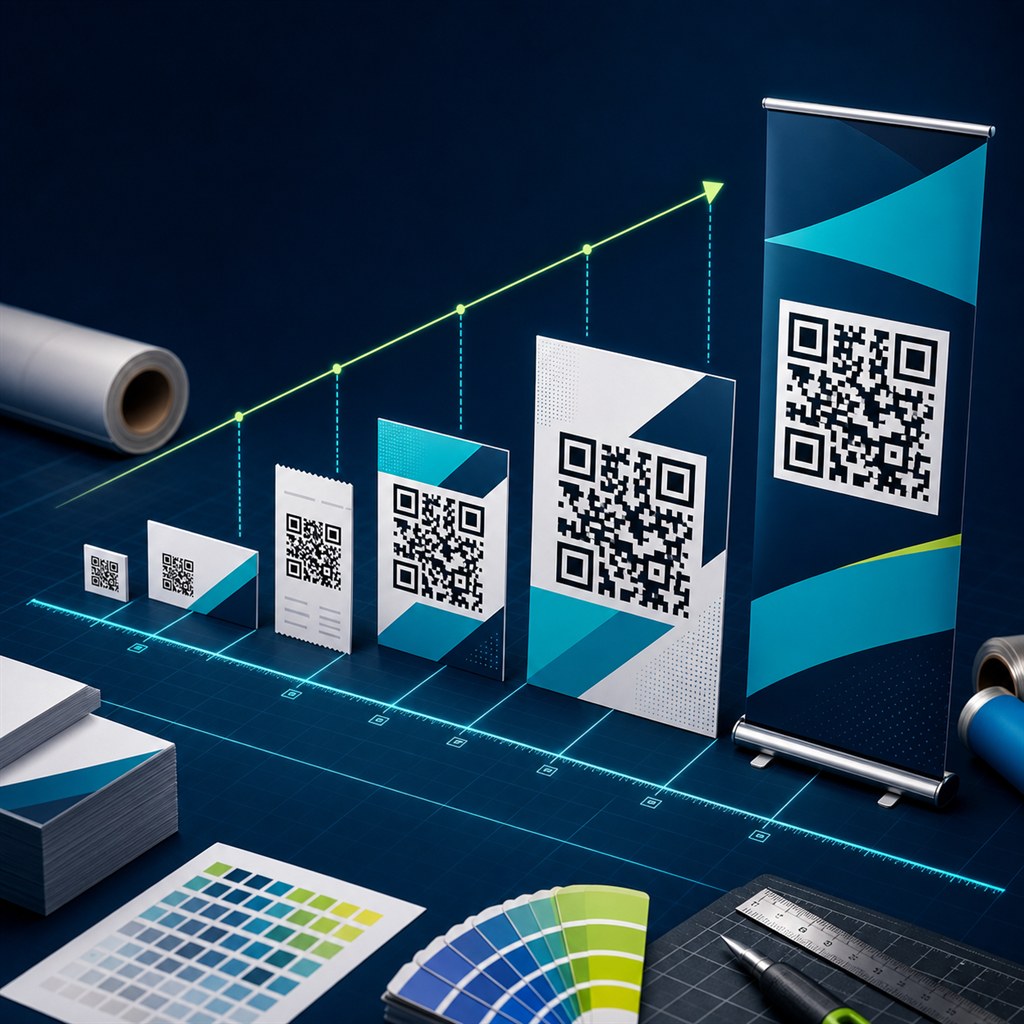
- Business card (85×55mm): minimum 1.5cm, comfortable 2cm — test on physical card before printing
- Sticker / label (small): minimum 2cm, comfortable 2.5–3cm
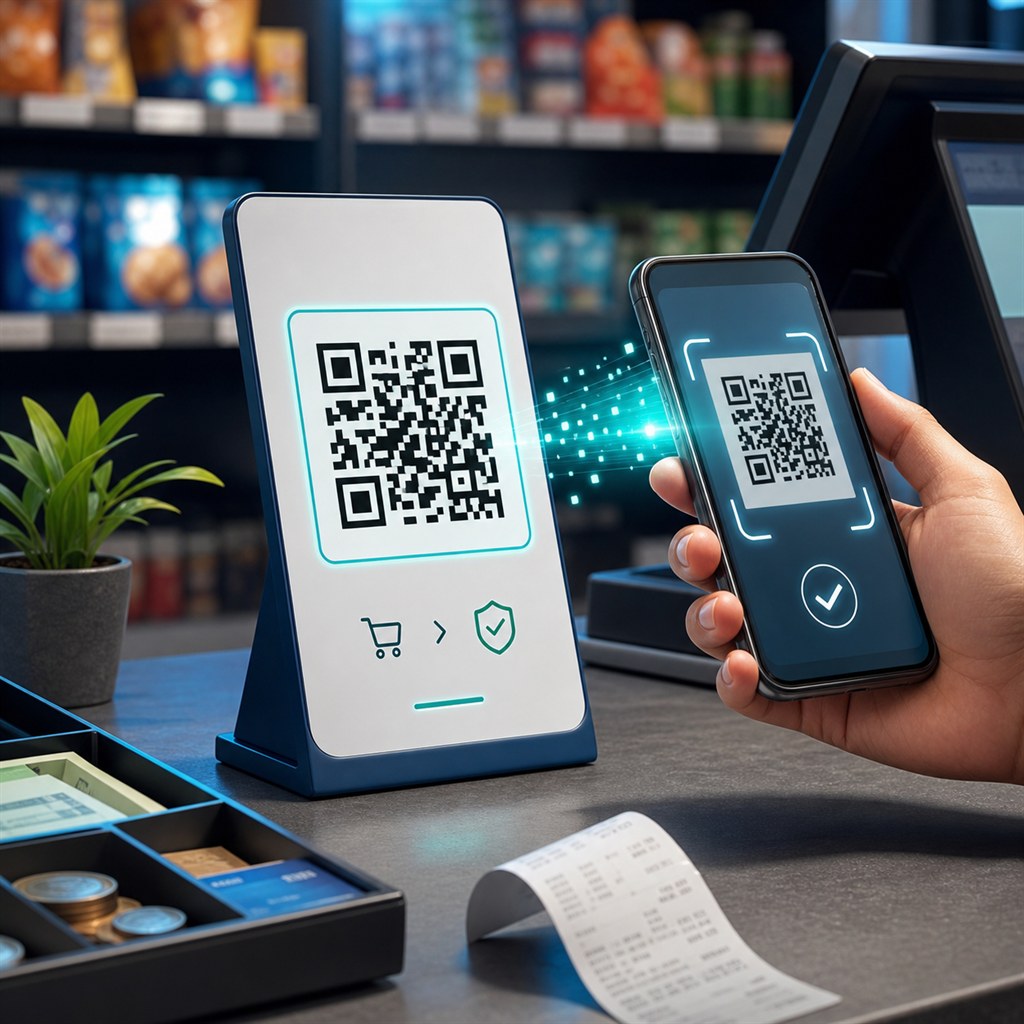
- Receipt or thermal label: minimum 2cm, comfortable 2.5cm
- A6 postcard / flyer: minimum 3cm, comfortable 4cm
- A5 brochure panel: minimum 4cm, comfortable 5cm
- A4 page / menu: minimum 5cm, comfortable 6–7cm
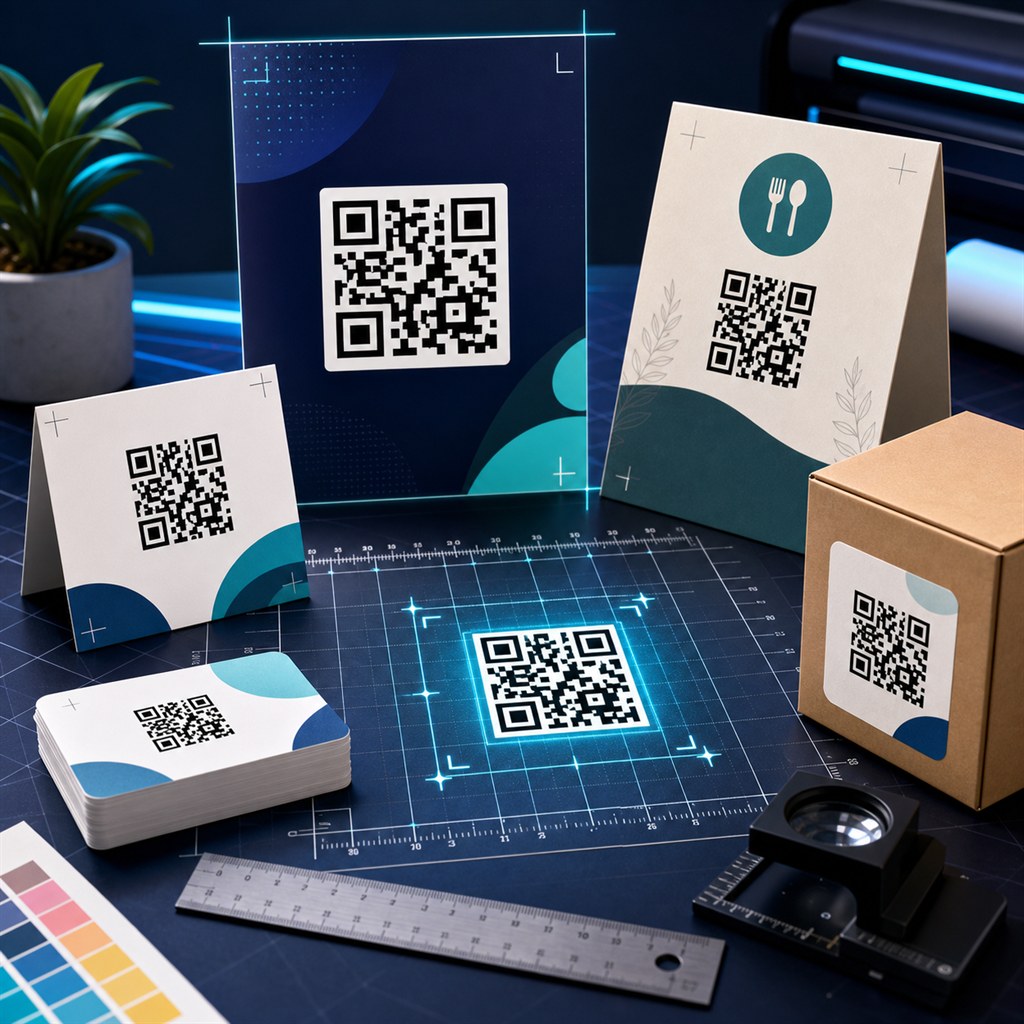
- Restaurant table tent (A5-ish): minimum 5cm, comfortable 6–8cm
- Counter standee (A5–A4): minimum 5cm, comfortable 7–9cm
- A3 poster: minimum 8cm, comfortable 10–12cm
- A2 poster: minimum 10cm, comfortable 14–18cm
- A1 / A0 poster: minimum 15cm, comfortable 20–25cm
- Window or wall vinyl: minimum 20cm, comfortable 25–35cm
- Roll-up banner (850×2000mm): minimum 20cm, comfortable 30cm
- Outdoor flex / billboard: minimum 40cm — test with the furthest expected scan distance
- Packaging (product box): minimum 2.5cm — depends on available face area and expected scan distance
PNG resolution (DPI) requirements
When downloading a PNG from a QR generator, the pixel size determines the maximum physical print size at a given DPI. Higher DPI = sharper dots = higher quality.
- 512px PNG: suitable for web/screen display only — do not use for print
- 1024px PNG at 300 DPI: max ~8.7cm (3.4 in) — good for small standees and receipts
- 1024px PNG at 150 DPI: max ~17.3cm — acceptable for A4 but bars may look slightly soft
- 2048px PNG at 300 DPI: max ~17.4cm (6.8 in) — good for A4 and A3 print
- 2048px PNG at 600 DPI: max ~8.7cm — for fine commercial print at small sizes
- 4096px PNG at 300 DPI: max ~34.7cm (13.7 in) — suitable for A1/A0 and large-format print
- SVG: no size limit — vector scales perfectly at any DPI without pixelation
SVG vs PNG — which to use for print
SVG is the better choice for print in almost every case. It is a vector format that scales to any physical size at any DPI without ever becoming blurry. One SVG file handles business cards and banners equally well.
Use PNG when: your print vendor or design software does not accept SVG files, or when you are compositing the QR into a raster image. In those cases, download at 2048px or 4096px.
- SVG: use for all print — business cards, posters, banners, packaging
- PNG 512px: web and digital display only
- PNG 1024px: small print (receipts, labels, A6 flyers)
- PNG 2048px: standard print (A5, A4, table tents)
- PNG 4096px: large-format print (A3, A2, A1, banners)
Quiet zone — the white margin rule
The quiet zone is the white margin surrounding the QR pattern. The QR standard requires a minimum of 4 module widths on all sides. Most generators include this automatically.
If you are placing the QR inside a designed layout, do not crop into the quiet zone. Keep at least 2–4mm of white space around the QR pattern edge, even if the overall design has a colored background.
Pre-print checklist
Run through this before every print order. A failed QR on a delivered print run is expensive — testing takes two minutes.
- Print a single test copy at the final size and DPI
- Scan with iPhone camera (no app) from the intended distance
- Scan with an Android phone from the intended distance
- Test in actual location lighting (not office bright light)
- Verify the QR opens the correct destination
- For logo QR codes: test that the logo does not prevent scanning
- For SVG: open in a browser and zoom to verify crisp rendering before sending to printer
Khushbu
Full-Stack Developer & Founder
I build tools I wish existed — fast, free, and private. Every tool runs in your browser because I believe your data should stay yours.
Tools mentioned in this guide