
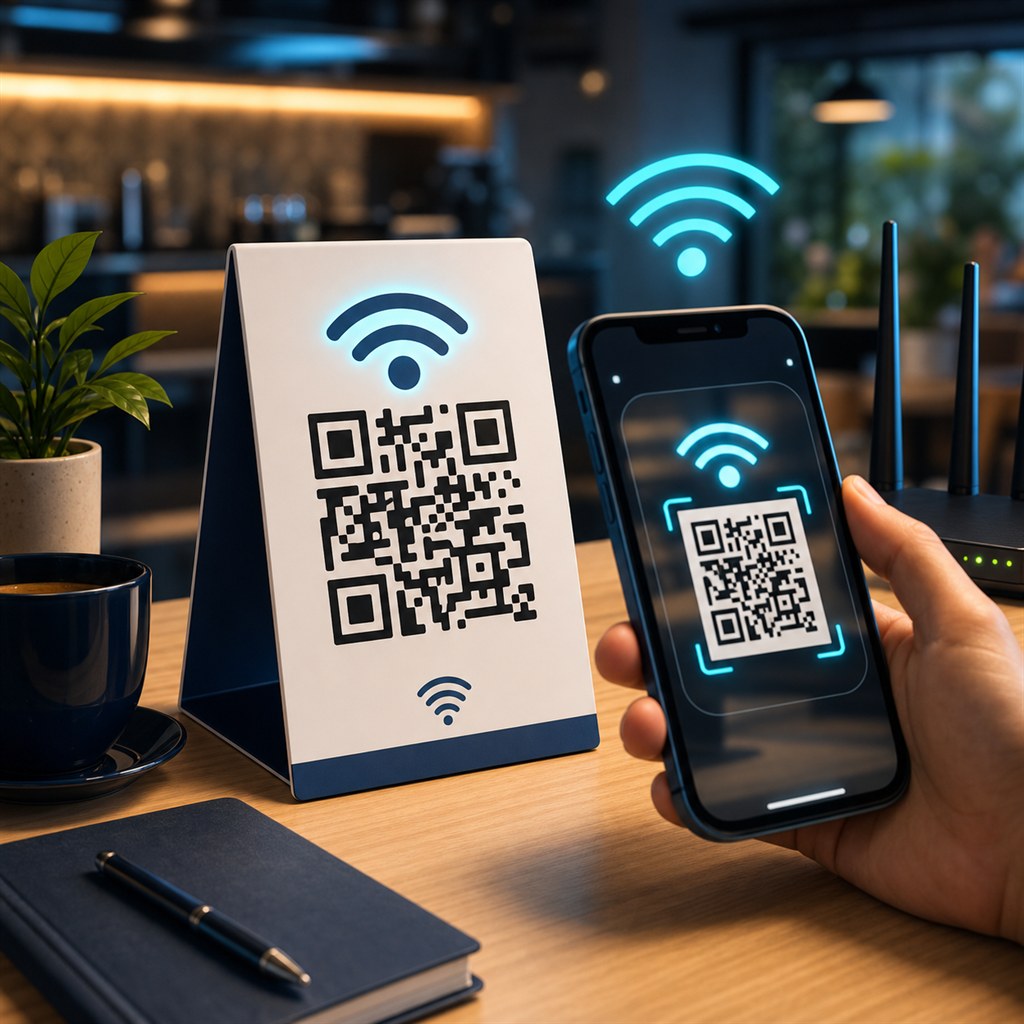
A WiFi QR code lets guests, customers, or visitors connect to your network by pointing their phone camera at a printed code — no password typing required. It works natively on iPhone (iOS 11+) and Android 10+, meaning guests see a one-tap "Join Network" prompt without downloading anything.
This guide explains how to create one in two minutes, what each setting means, where to use it, and how to avoid the common mistakes that make printed QR codes fail to scan.
What is a WiFi QR code?
A WiFi QR code encodes your network credentials in a standard payload format: WIFI:T:<security>;S:<SSID>;P:<password>;;. When an iOS or Android camera app detects this payload, it offers a connect prompt automatically — no QR scanner app needed.
The payload is just a string. Nothing is stored on a server, and your password is not transmitted anywhere when you generate it in the browser. The QR image itself is the only thing that carries your credentials.
How to create a WiFi QR code
Use the free WiFi QR Code Generator at WebToolsPlanet. Enter your network name (SSID) exactly as it appears in your router settings — capitalisation matters. Enter your WiFi password, select the security type (WPA/WPA2 for virtually all modern routers), then download.
Download SVG for print. It scales to any size without becoming blurry. If you need PNG — for a specific design tool or format requirement — download at 512px or higher.
- Enter SSID exactly as shown in router settings
- Choose WPA/WPA2 for modern routers (2008 and later)
- Leave amount blank if you want the payer to enter their own
- Toggle "Hidden network" only if your router does not broadcast its SSID
- Download SVG for the sharpest print result at any size
Does it work on iPhone and Android?
Yes. Apple added native WiFi QR support in iOS 11 (released 2017). Open the Camera app, point at the code, and a "Join Network" banner appears. Tap it — done. Works on iPhone 6s and later.
On Android: natively on Android 10+ via the camera app. On Android 9 and earlier, Google Lens handles it. Samsung, OnePlus, Xiaomi, and most major Android OEMs also added native support in their camera apps. Older budget phones may need a free QR scanner app.
Best places to use a WiFi QR code
Any shared space where guests need WiFi access benefits from a printed QR. The key is placing it somewhere visible at the moment the guest wants to connect — not buried in a welcome folder.
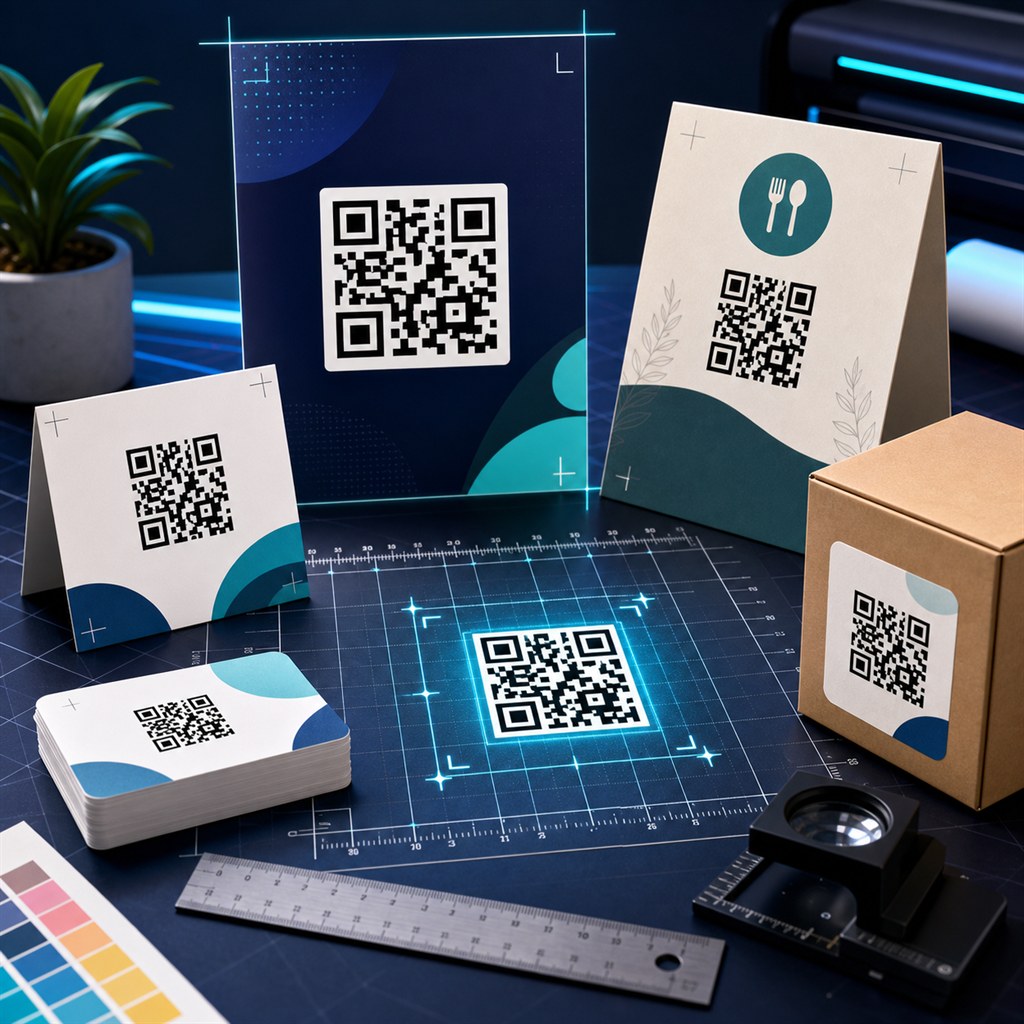
- Cafe or restaurant table: laminated card or table tent
- Hotel room: desk card next to the TV remote
- Airbnb: printed welcome card or stuck to the router
- Conference room: framed print on the wall near the screen
- Co-working space: reception desk standee
- Home guest room: printed label on the router or bedside table
- Pop-up event or market stall: banner or flyer
What size should you print a WiFi QR code?
A rough rule: the QR code should be at least 2.5cm (1 inch) wide for scanning at 15–20cm distance, and proportionally larger for greater distances. For a cafe table tent, 5cm × 5cm is comfortable. For a wall sign, 10cm × 10cm or larger.
SVG at the target physical size prints crisply on any printer at any DPI. PNG should be at least 300 DPI at the final print size — download at 1024px or 2048px to be safe.
Common mistakes that make WiFi QR codes fail
The most common issue is a typo in the SSID or password — the QR code scans correctly but the phone cannot join the network. Always test by scanning the downloaded QR before printing.
Other issues: printing at too small a size (under 2cm), placing behind glare-producing glossy film, low ink coverage on a home printer causing faint bars, or updating your WiFi password without reprinting the QR code.
- Always scan-test the QR before sending to print
- Check that the SSID matches router settings exactly — including case
- Reprint the QR code whenever you change your WiFi password
- Laminate with a matte finish to avoid glare
- Keep enough white margin (quiet zone) around the QR pattern
Khushbu
Full-Stack Developer & Founder
I build tools I wish existed — fast, free, and private. Every tool runs in your browser because I believe your data should stay yours.
Tools mentioned in this guide