

 WebToolsPlanet for Chrome
Screenshot & Capture
The whole page. Every detail.
Capture, annotate, and share a web page. Inspect the design behind it, all from your browser.
Free. No signup. No watermark. For desktop Chrome.
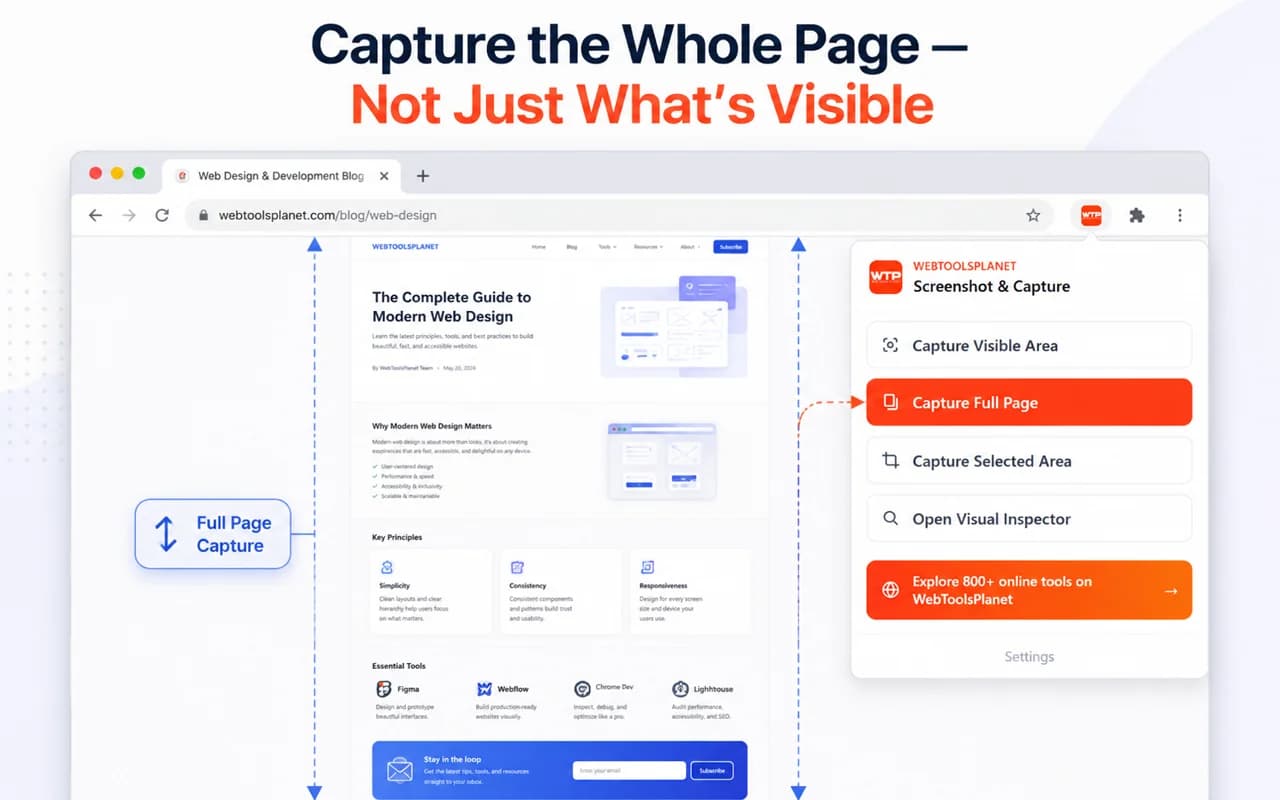
From page to picture
Show exactly what you mean.
A design review, a bug report, or a page worth keeping. Give it the context it needs.
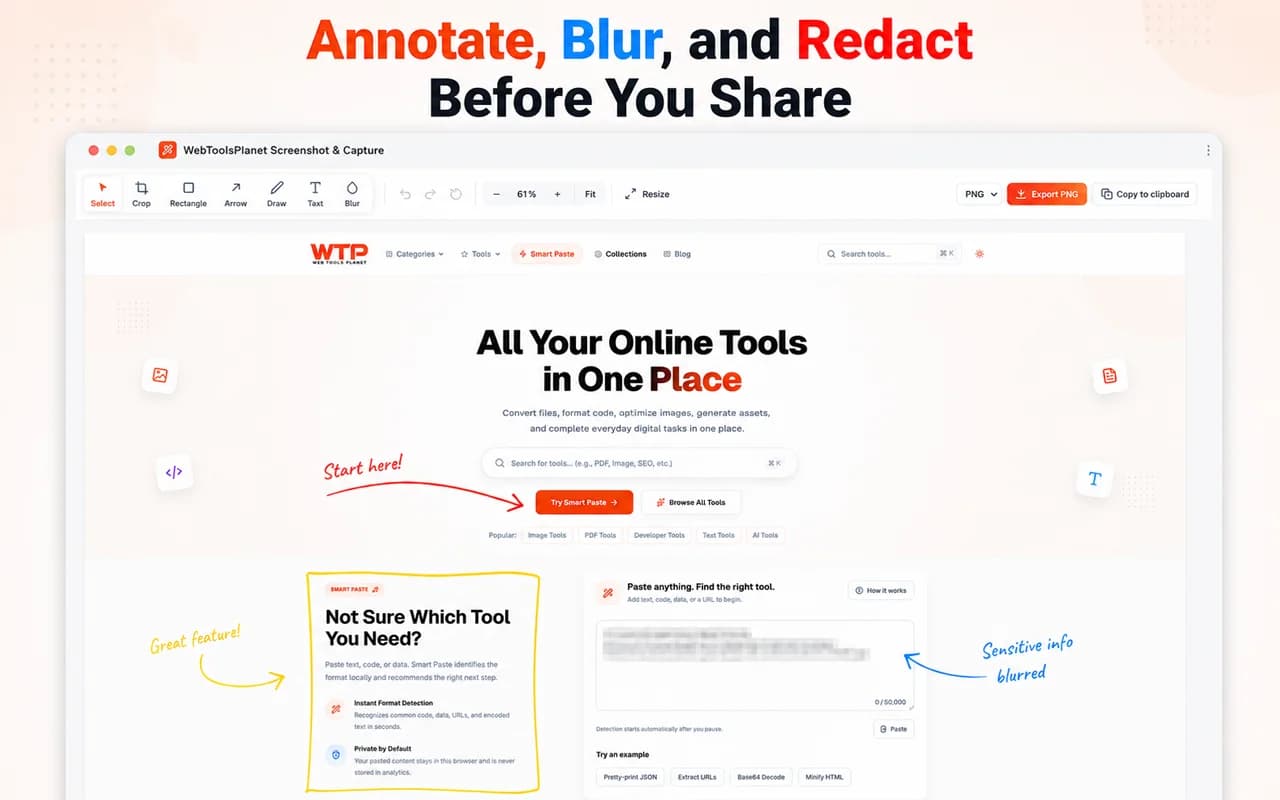
Capture. Then make it clear.
- Capture the full page, visible area, or a rectangle you select.
- Add arrows, drawings, shapes, and text. Crop away the extras.
- Blur sensitive details before you share. Undo and redo as you go.
Ready for wherever it goes next
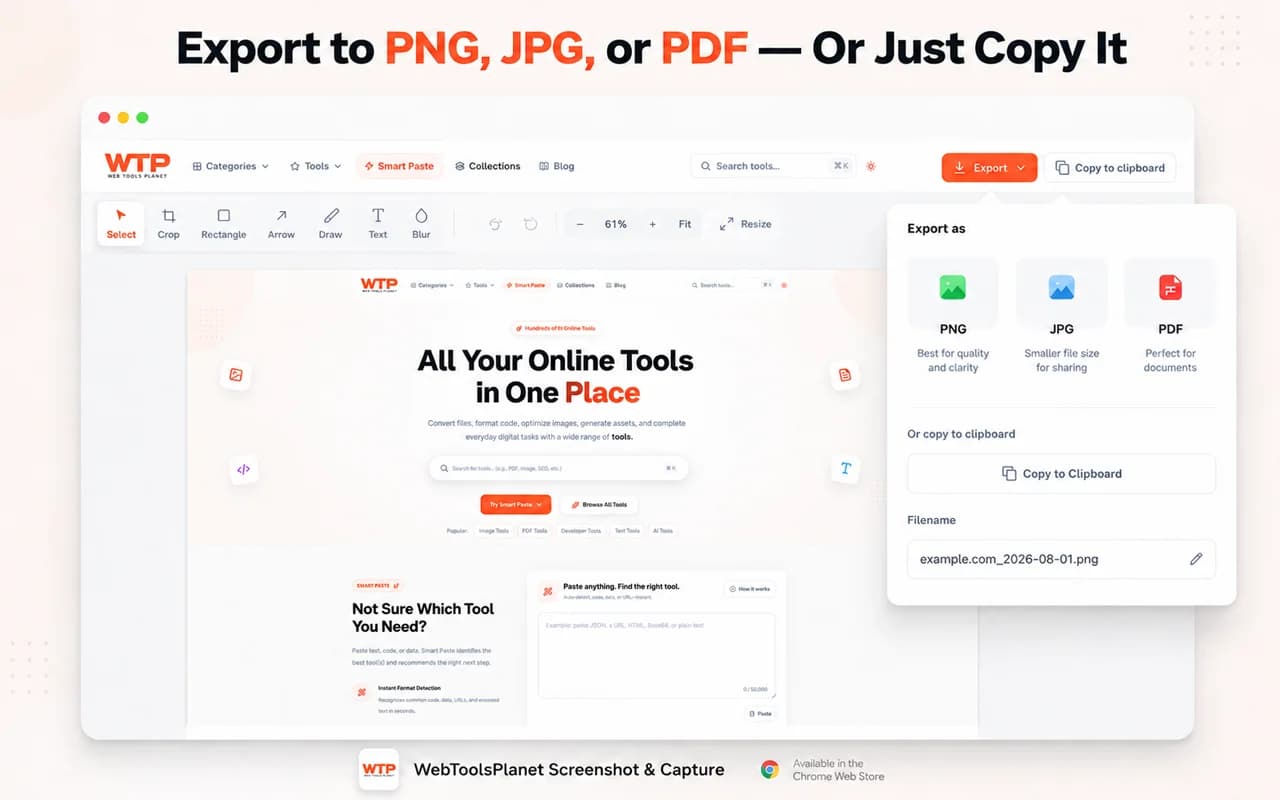
Your screenshot. Your format.
Export PNG, JPG, or PDF, or copy to your clipboard. Set JPG quality, choose your filename pattern, and enable automatic downloads in Options.
Built for design feedback, documentation, and everyday sharing.
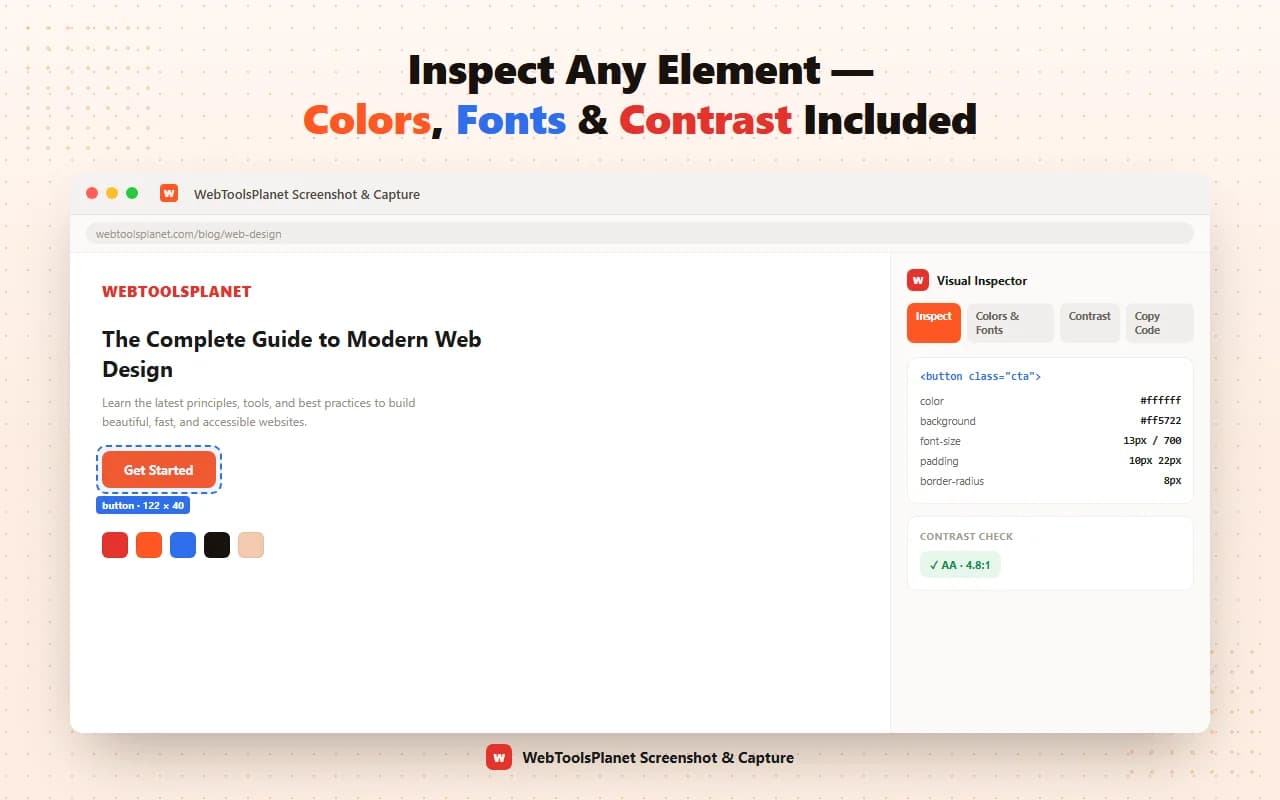
Look beyond the screenshot
Meet the Visual Inspector.
Pick an element and understand how it’s styled without leaving the page.
- See CSS, computed styles, and the box model.
- Extract the page’s colors and fonts.
- Check text contrast against WCAG AA and AAA.
- Copy code from the element you picked.
Local by design
Your captures stay with you.
The extension captures, edits, and exports locally. It has no backend, analytics, or tracking, and does not upload screenshots or inspected page content.
It works on the tab you choose. Screenshots kept for the editor expire from extension storage after 24 hours. Files you download remain yours to keep or delete.
Read the extension privacy policyA few clicks to your first capture
Install. Pin. Capture.
- 01
Add it to Chrome
Open the store listing in desktop Chrome and choose Add to Chrome. Review the permissions, then confirm.
- 02
Choose your capture
Pin the extension, open a web page, and choose full page, visible area, or selected area.
- 03
Make it ready to share
Annotate, crop, or blur in the editor. Export a file or copy the screenshot to your clipboard.
Good to know
A few questions, answered.
Is it free?
Yes. Capture, edit, inspect, and export without a subscription, account, or watermark.
Which pages can I capture?
Regular HTTP and HTTPS web pages are supported. Browser settings, extension pages, the Chrome Web Store, local files, and Chrome’s built-in PDF viewer have restrictions. Local files are blocked by default; you can enable “Allow access to file URLs” in the extension’s Chrome settings.
What happens on very long pages?
Full-page capture scrolls to load content and handles sticky elements. Infinite-scroll pages are capped, and the extension warns when a capture is incomplete or contains embedded frames that cannot be captured independently.
Does the extension upload my screenshots?
No. Capturing, editing, inspecting, and exporting happen locally. The extension has no backend, analytics, or telemetry. Screenshots retained for the editor are automatically deleted from extension storage after 24 hours; downloaded files stay on your computer until you delete them.
Can I change the export settings?
Yes. Options include your default capture mode, PNG/JPG/PDF format, JPG quality, filename pattern, capture delay, and automatic downloads. Alt + Shift + S starts your default capture mode.
WebToolsPlanet Screenshot & Capture
Keep the page. Share the point.
Add to ChromeAvailable from the Chrome Web Store for desktop Chrome.
Need help? Contact us