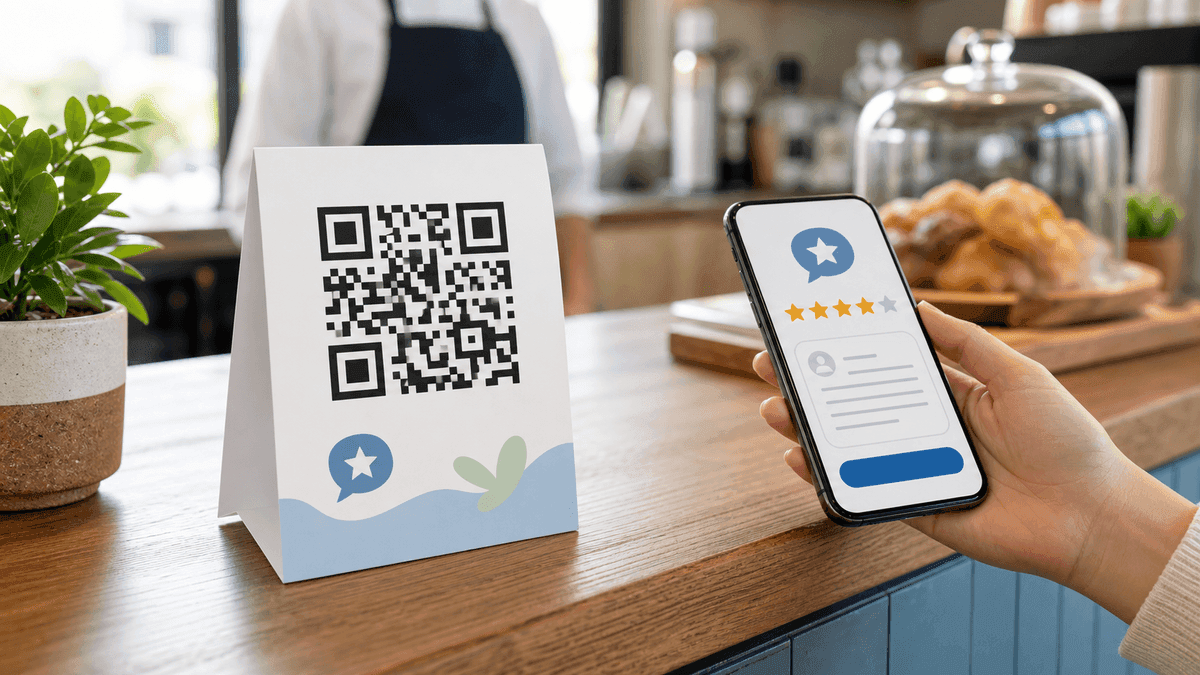
A Google review QR code sends customers to your Google review request flow when they scan it. Instead of asking people to search for your business and find the reviews tab, a single scan opens the right review link.
Google Business Profile can create an official review link or QR code directly. This guide shows you how to get that link, turn it into a custom static QR code using the QR Code Generator, and where to place it to get useful scans.
Step 1 — Get your Google review link or official QR code
On a computer, open your Google Business Profile. Select Read Reviews → Get more reviews. From that panel you can copy the review link or download Google's own QR code image.
Google Business Profile Help currently says review QR codes can be generated from a computer browser, not from mobile devices. If you want the official QR image, download it from Business Profile. If you want a custom design, copy the review link instead.
A Google Maps Share link is usually just your listing link — not the direct review request link. Use Business Profile as the primary method. The Place ID URL format (search.google.com/local/writereview?placeid=YOUR_PLACE_ID) is an advanced fallback, but review links from Business Profile are simpler and less error-prone.
Step 2 — Generate the QR code
Open the QR Code Generator and select the URL payload type. Paste your Google review link into the URL field. The QR code generates instantly in your browser.
Download as SVG for print materials (posters, table cards, receipts) or PNG for digital use (email signatures, social posts). SVG scales to any size without pixelation.
Where to place your Google review QR code
The most effective placements are: table cards or tent cards in a restaurant or café, printed receipts or invoices (near the bottom), thank-you cards in packaging, and near the exit of a physical location.
For service businesses — plumbers, cleaners, personal trainers — a small card left at the end of a job with the QR code gets more reviews than a follow-up email alone.
Table cards — highest scan rate for restaurants and cafés
Receipt print — reaches every customer automatically
Packaging insert — reaches customers after a positive unboxing
Staff lanyards or name badges — works for hospitality and retail
Email signature — reaches clients after every conversation
Why this works better than sharing a link
Most customers who intend to leave a review forget by the time they get home. A physical QR code at the point of experience — when satisfaction is highest — removes the delay.
There is no separate QR scanner app to download. iPhone and Android both scan QR codes natively with the camera app. The review link opens in the browser or Google app, and customers may need to sign in to a Google Account before posting.
Google review policy reminders
Ask for honest feedback only. Do not offer discounts, freebies, gifts, refunds, or other incentives in exchange for posting a review, changing a review, or removing a negative review.
Use neutral wording such as "Scan to review us on Google" instead of "Scan for a 5-star review." Google reviews should reflect a genuine customer experience, and a mix of positive and negative feedback is more trustworthy than review gating.
Related QR resources
If this review QR code will be printed on cards, receipts, menus, or counter signs, open the QR Code Tools hub for the full QR workflow: generator, logo QR, print sizing, contrast checks, and scan troubleshooting.
For adjacent customer-facing QR workflows, see How to Generate a QR Code for an Outlook Email or Link and Are Free QR Code Generators Safe?.
Frequently Asked Questions
Q: Does the QR code expire?
A: No. A URL QR code generated with a free static generator never expires on its own. The code will work as long as your Google Business Profile is active and the review link is valid.
Q: Can I use any QR code generator for this?
A: Yes — a Google review QR code is just a URL QR code. Any static QR code generator that encodes a URL will work. You do not need a dynamic QR service or a paid plan.
Q: What size should the QR code be for print?
A: For a table card or receipt, 3cm × 3cm (approximately 1.2in × 1.2in) is the minimum. For a poster or wall sign, 6cm × 6cm or larger. Always scan-test the printed code before distributing.
Q: Can I offer a discount for a Google review?
A: No. Do not offer incentives for Google reviews. Ask customers for honest feedback and let them choose whether to leave a review.
Tools mentioned in this guide