

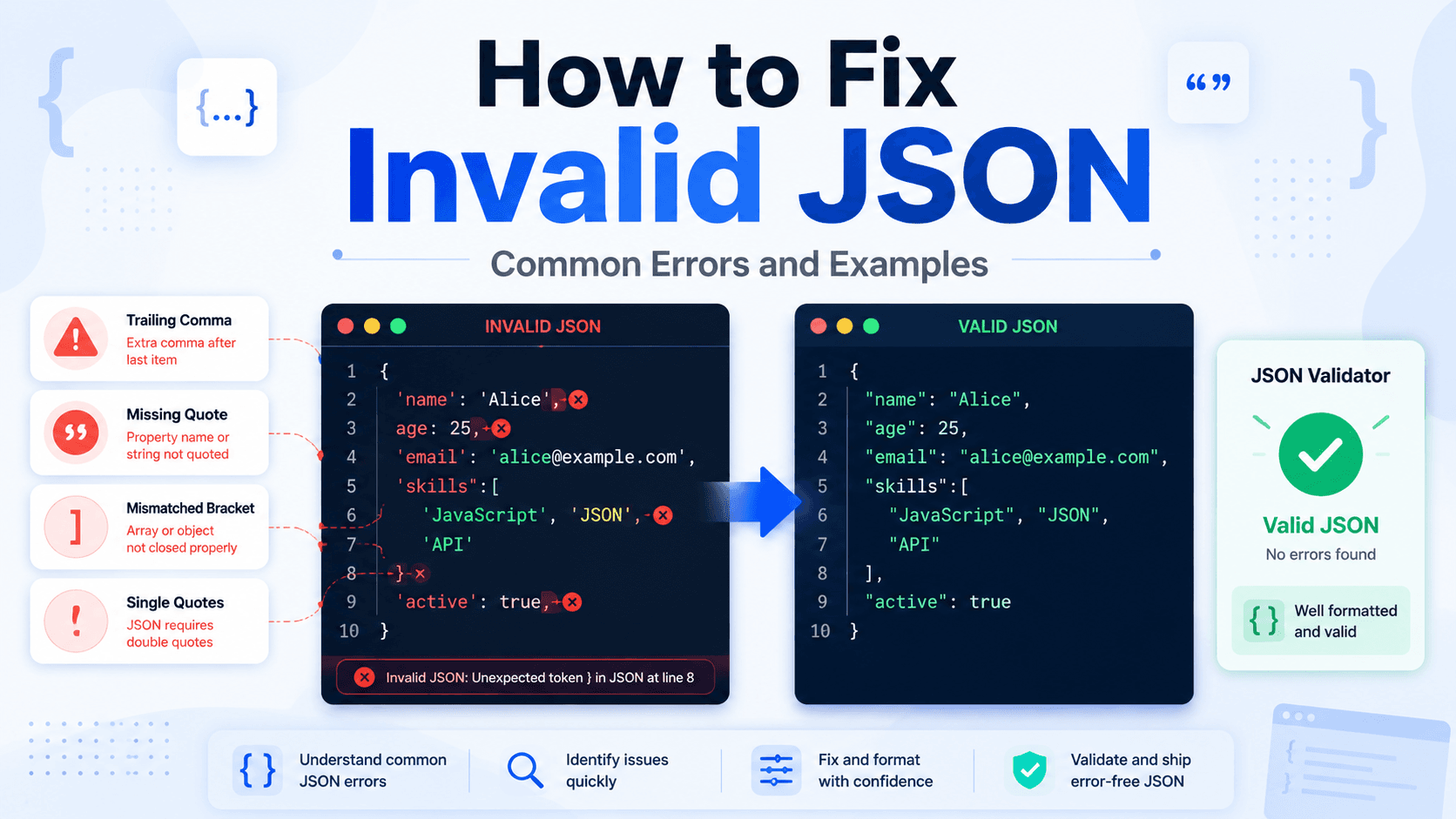
A single misplaced comma can break an entire API integration. JSON is unforgiving — one syntax mistake anywhere in the document causes the whole thing to fail silently or throw a cryptic error. The good news is that every JSON error follows a pattern, and once you know them, fixes take seconds.
Quick Answer
Invalid JSON usually fails because of one of four mistakes: a trailing comma after the last item, a missing or mismatched quote, a structural nesting error, or an unescaped special character. Paste your JSON into the JSON Validator to find the exact line and error type instantly — no setup required.
Use the Free Tool
The fastest way to fix broken JSON is to let a validator tell you exactly what is wrong.
Paste your JSON into the JSON Validator at WebToolsPlanet. It parses your input using the same strict rules as JSON.parse() and immediately shows you:
The error message — what went wrong (e.g.
Unterminated string in JSON)The line number — which line the parser failed on
The character position — where on that line parsing stopped
Once the validator shows green, run the result through the JSON Formatter to get a clean, properly indented version that is easy to read and share.
Both tools run entirely in your browser — your data is never sent to a server.
Why JSON Breaks: The Most Common Errors
1. Trailing Comma
This is the most frequent JSON error, especially for developers coming from JavaScript, Python, or other languages that allow trailing commas in arrays and objects.
Broken:
{ "name": "Alice", "role": "admin", }Error: Unexpected non-whitespace character after JSON value
Fixed:
{ "name": "Alice", "role": "admin" }The JSON specification does not allow a comma after the last item in an object or array. Remove it.
2. Missing or Unmatched Quote
A single missing or wrong quote character breaks the entire document.
Broken:
{ "product": "Keyboard, "price": 49.99 }Error: Unterminated string in JSON
Fixed:
{ "product": "Keyboard", "price": 49.99 }JSON strings must use straight double quotes ("). Curly quotes (" ") copied from Word or Google Docs also cause this error.
3. Bad Nesting or Mismatched Brackets
Forgetting to close a bracket or brace — or mixing ] and } — causes a parsing failure that can be hard to spot in long files.
Broken:
{ "users": [ {"id": 1, "name": "Alice"}, {"id": 2, "name": "Bob" ] }Error: Expected ',' or '}' after property value in JSON
Fixed:
{ "users": [ {"id": 1, "name": "Alice"}, {"id": 2, "name": "Bob"} ] }The second object was missing its closing } before the array's ]. Use the JSON Tree Viewer to see the full structure visually — it makes mismatched brackets much easier to spot.
4. Unescaped Special Characters Inside Strings
Certain characters have special meaning inside JSON strings and must be escaped with a backslash.
Broken:
{ "message": "She said "hello" to everyone" }Error: Expected ',' or '}' after property value in JSON
Fixed:
{ "message": "She said \"hello\" to everyone" }Characters that require escaping inside JSON strings:
5. Using Single Quotes Instead of Double Quotes
JavaScript allows single quotes for strings. JSON does not.
Broken:
{ 'status': 'active' }Error: Expected property name or '}' in JSON
Fixed:
{ "status": "active" }6. Comments in JSON
JSON does not support comments. Developers sometimes add them out of habit.
Broken:
{ // This is the user object "id": 42, "name": "Alice" }Error: Unexpected token '/', '//' is not valid JSON
Fixed:
{ "id": 42, "name": "Alice" }If you need comments in your data files, use YAML or JSONC (JSON with Comments), which some editors and tools support.
Step-by-Step Workflow
Fix broken JSON in under 2 minutes
Step 1: Paste your JSON into the JSON Validator.
Step 2: Read the error message. It will give you the line number and a short description of what is wrong.
Step 3: Fix the error in the validator's input box.
Step 4: Click validate again. Repeat until no errors remain.
Step 5: Copy the clean JSON into the JSON Formatter to get a properly indented, readable version.
Step 6: For complex nested structures, paste the clean JSON into the JSON Tree Viewer to explore the structure visually before using it.
Common Mistakes
Fixing one error at a time without re-validating. Many JSON errors hide behind the first one. Always re-validate after each fix — a document with three errors will only show the first until it is resolved.
Copying JSON from a browser or CMS that silently changes quote characters. Curly quotes look like straight quotes in a text editor but are not valid JSON. Always paste raw source or API responses, not formatted content.
Editing minified JSON by hand. If your JSON is on one line, format it first with the JSON Formatter, then edit it. Editing unformatted JSON by hand leads to bracket and comma errors.
Not checking for a BOM (Byte Order Mark). Files saved from Windows tools sometimes have a hidden BOM character at the start. If your validator says Unexpected token on line 1 column 1 but you cannot see anything wrong, paste the content into a plain text editor like Notepad++ and check the encoding.
Assuming the error line number is exact. JSON parsers report where they gave up, not necessarily where the mistake is. A missing closing bracket on line 5 may not get reported until line 30 when the parser hits something unexpected. Use a tree viewer to get the full picture.
Best Practices
Always validate before using JSON from an external source. API responses, webhook payloads, and imported config files can all contain unexpected characters or encoding issues.
Use a linter in your editor. VS Code and most modern editors can validate JSON as you type with built-in or extension support.
Keep your objects flat when possible. Deep nesting (5+ levels) is harder to debug. Consider restructuring the data.
Use the JSON Cleaner for sanitizing keys and values. It can remove null values, empty strings, and unwanted whitespace automatically.
Test with the smallest possible example. If you have 500 lines of JSON and it fails, strip it back to 10 lines to isolate the error.
Related Tools
JSON Validator — Check JSON syntax and get precise error messages
JSON Formatter — Format and pretty-print JSON for readability
JSON Tree Viewer — Explore nested JSON as a collapsible tree
JSON Fixer — Auto-repair common JSON errors automatically
JSON Cleaner — Strip nulls, empty values, and unwanted whitespace
The JSON Tools collection groups every JSON utility in one place — formatting, validating, converting, diffing, and more. If you work with APIs and data regularly, the full Developer Tools category has everything else you need alongside it.
FAQ
What does "Unexpected token" mean in a JSON error?
It means the parser found a character it was not expecting at that position. The most common causes are a trailing comma, a single quote instead of a double quote, or a missing closing bracket or brace. The error message usually includes the character that triggered it.
Can I have comments in JSON?
No. The JSON specification does not allow comments. If you need annotated data files, use YAML (which supports # comments) or JSONC (JSON with Comments), which is supported by VS Code and some build tools. Standard JSON parsers will reject any // or /* */ comment.
Why does my JSON work in JavaScript but fail in a JSON validator?
JavaScript is more lenient than the JSON specification. It accepts trailing commas, single quotes, and even some unquoted keys in object literals. JSON.parse() in JavaScript is strict, but other parts of the language are not. A JSON validator follows the formal RFC 8259 specification, which is stricter.
What is the difference between JSON Validator and JSON Formatter?
A validator checks whether your JSON is syntactically correct and reports errors. A formatter takes valid JSON and rearranges it with consistent indentation and line breaks to make it easier to read. You should validate first, then format.
How do I fix JSON that has newlines inside string values?
A literal newline character inside a JSON string is invalid. Replace it with the escape sequence \n. If the string came from a database or API, the issue is usually in how the string was serialized — use a proper JSON serialization library rather than building JSON strings manually.
Is there a way to auto-fix JSON instead of finding errors manually?
Yes. The JSON Fixer can automatically repair the most common errors including trailing commas, single quotes, and missing brackets. For complex or severely malformed JSON, manual review is still recommended after the auto-fix.
Fix Your JSON Now
Paste your broken JSON into the JSON Validator to get the exact error and line number. Once it is valid, use the JSON Formatter to make it clean and readable — both tools are free, instant, and run entirely in your browser.
Put this guide into practice